Claude Code 通过专用插件与 JetBrains IDEs 深度集成,提供交互式差异查看、代码选区上下文共享等强大功能,让 AI 辅助编程无缝融入你的开发工作流。
支持的 IDE
Claude Code 插件支持绝大多数 JetBrains IDE,包括:
核心功能
安装配置
第一步:安装前提条件
在安装 JetBrains 插件之前,需要先安装 Claude Code CLI。
# macOS、Linux、WSL 安装
curl -fsSL https://claude.ai/install.sh | bash
# Windows PowerShell 安装
irm https://claude.ai/install.ps1 | iex

# 验证安装
claude --version
如需详细安装步骤,请参考 Claude Code 安装指南 。
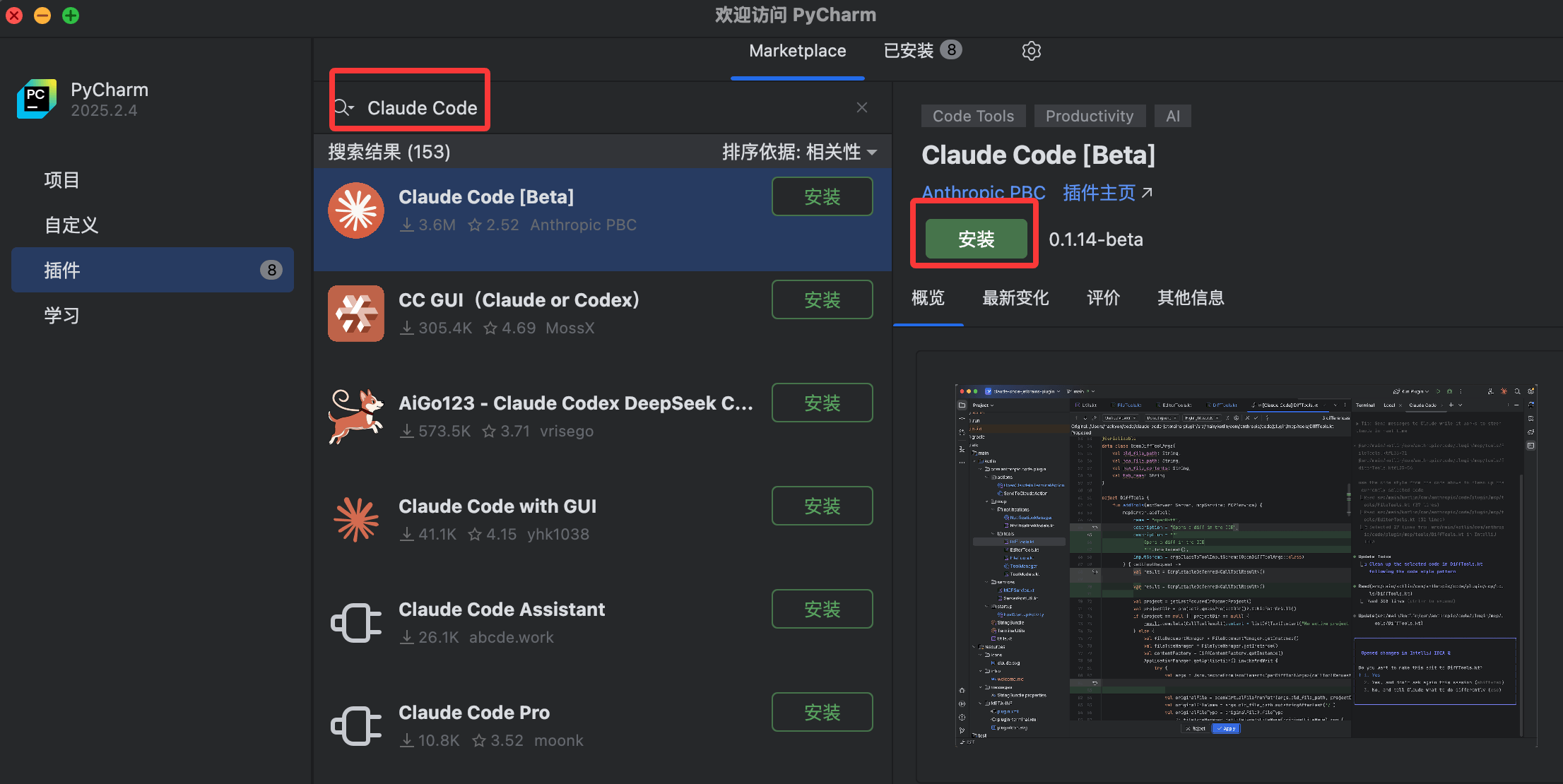
第二步:安装 JetBrains 插件
第三步:启动并连接 Claude Code
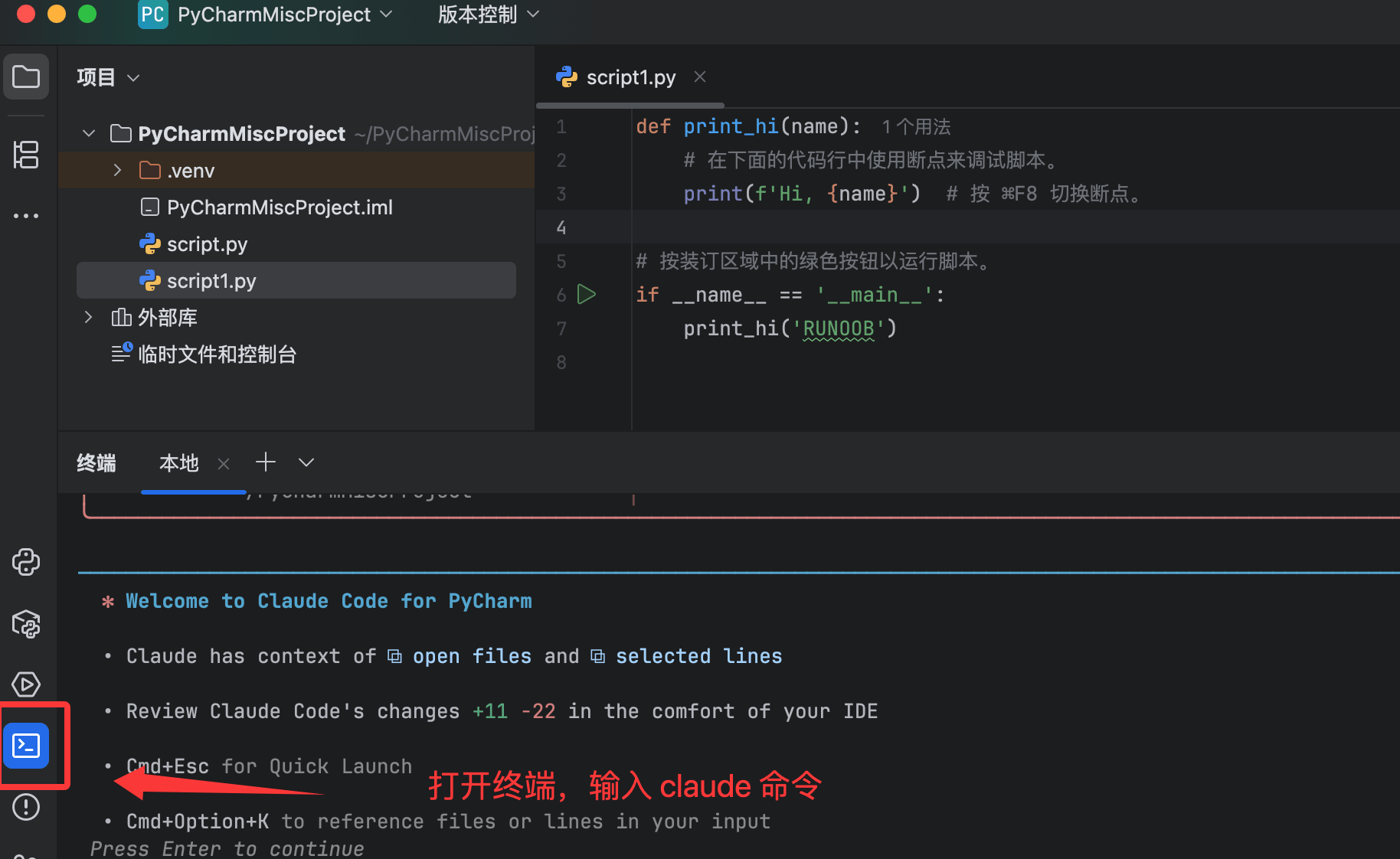
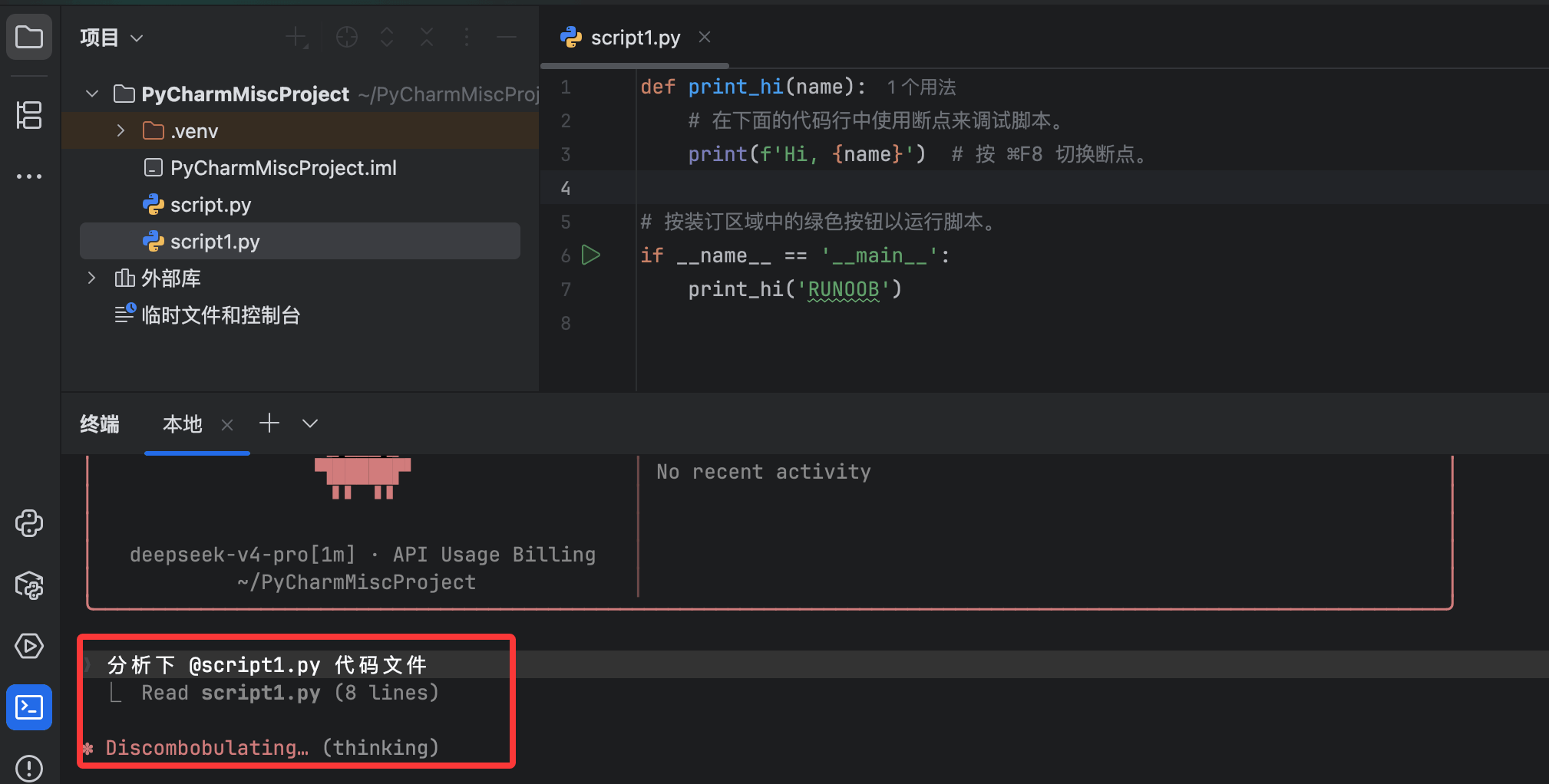
在 IDE 内置终端中运行以下命令,所有集成功能将自动激活:
claude
这是一个欢迎界面,按下 Enter 后,就可以开始干活了:
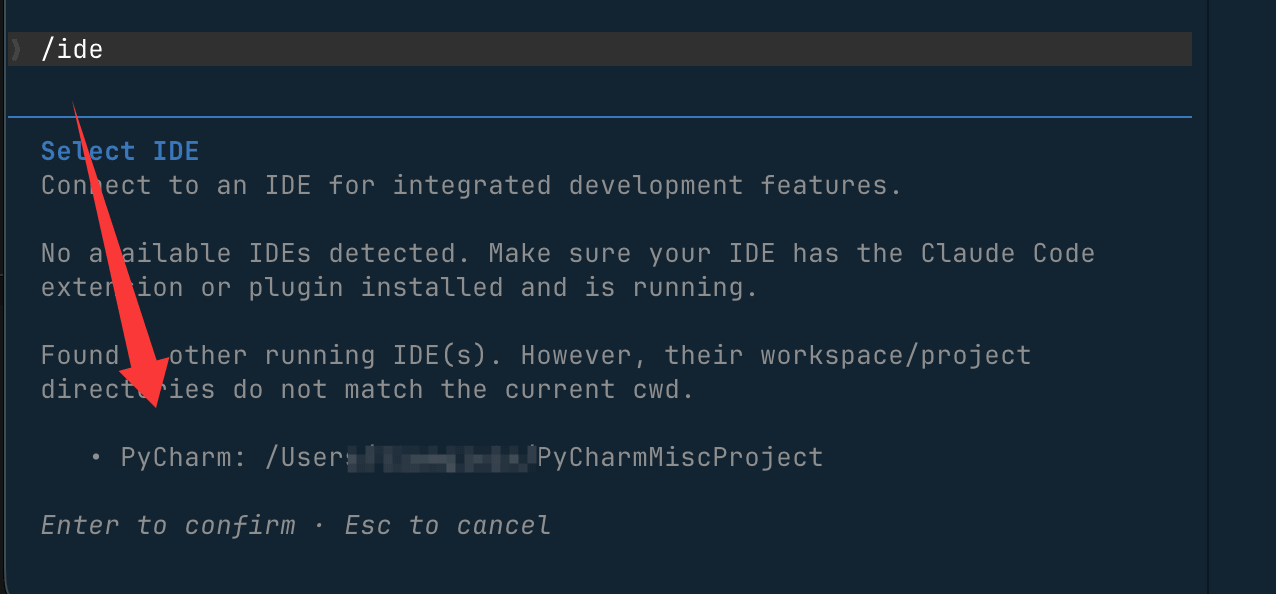
如果你使用的是外部终端,可以通过 /ide 命令将 Claude Code 连接到你的 JetBrains IDE:
# 先启动 Claude Code
claude

# 然后执行 /ide 命令连接 IDE
/ide
💡 提示 :为确保 Claude 能访问与 IDE 相同的文件,请从 IDE 项目根目录启动 Claude Code。
第四步:配置 Claude Code
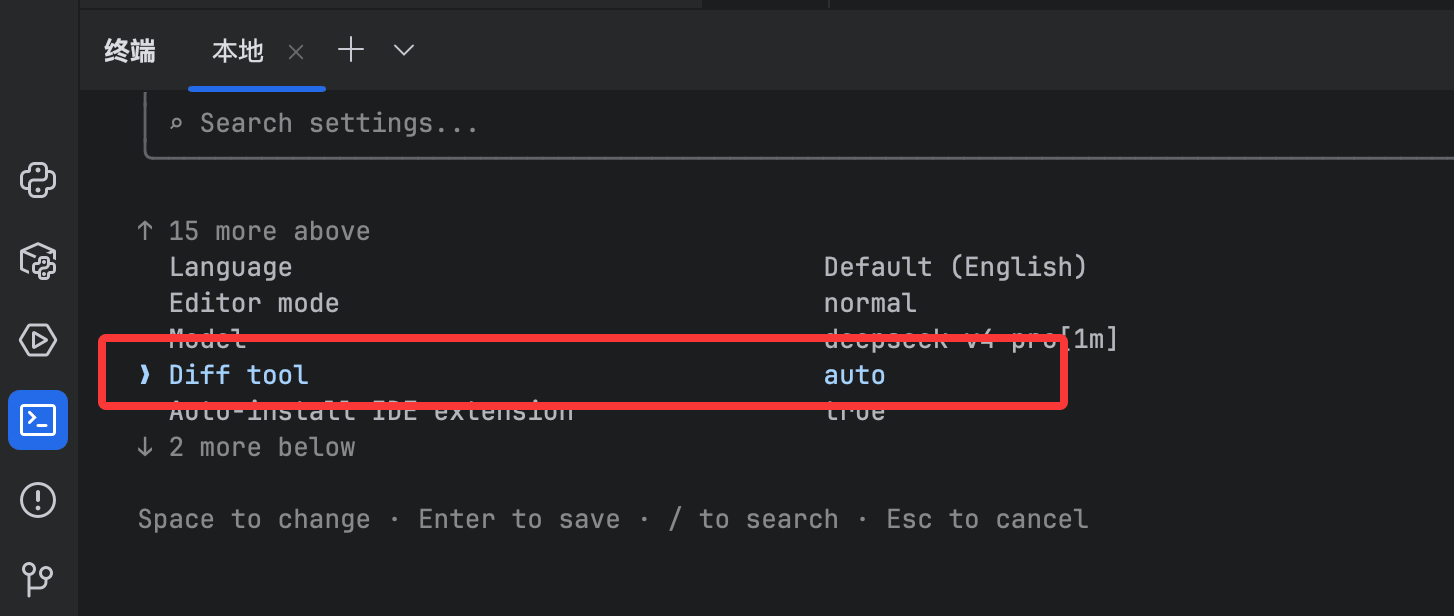
运行 Claude Code 后,通过以下步骤设置 Diff 显示方式:
# 启动 Claude Code
claude

# 进入配置
/config
将 diff 工具设置为 auto ,代码变更将直接在 IDE Diff 查看器中显示;设置为 terminal 则保留在终端中展示。
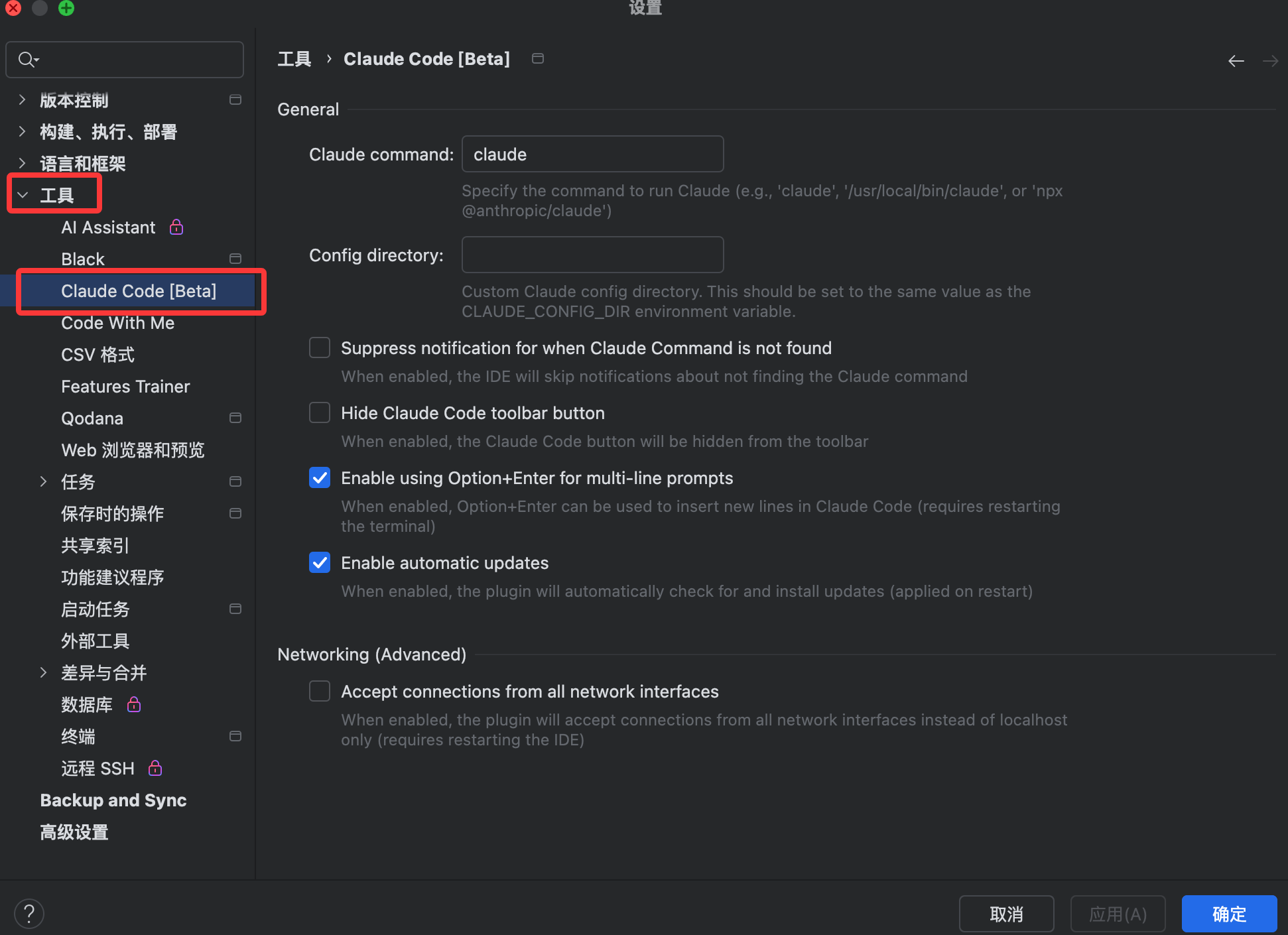
进入 Settings → Tools → Claude Code [Beta] ,可以配置以下选项:
wsl -d Ubuntu -- bash -lic "claude"
Ubuntu
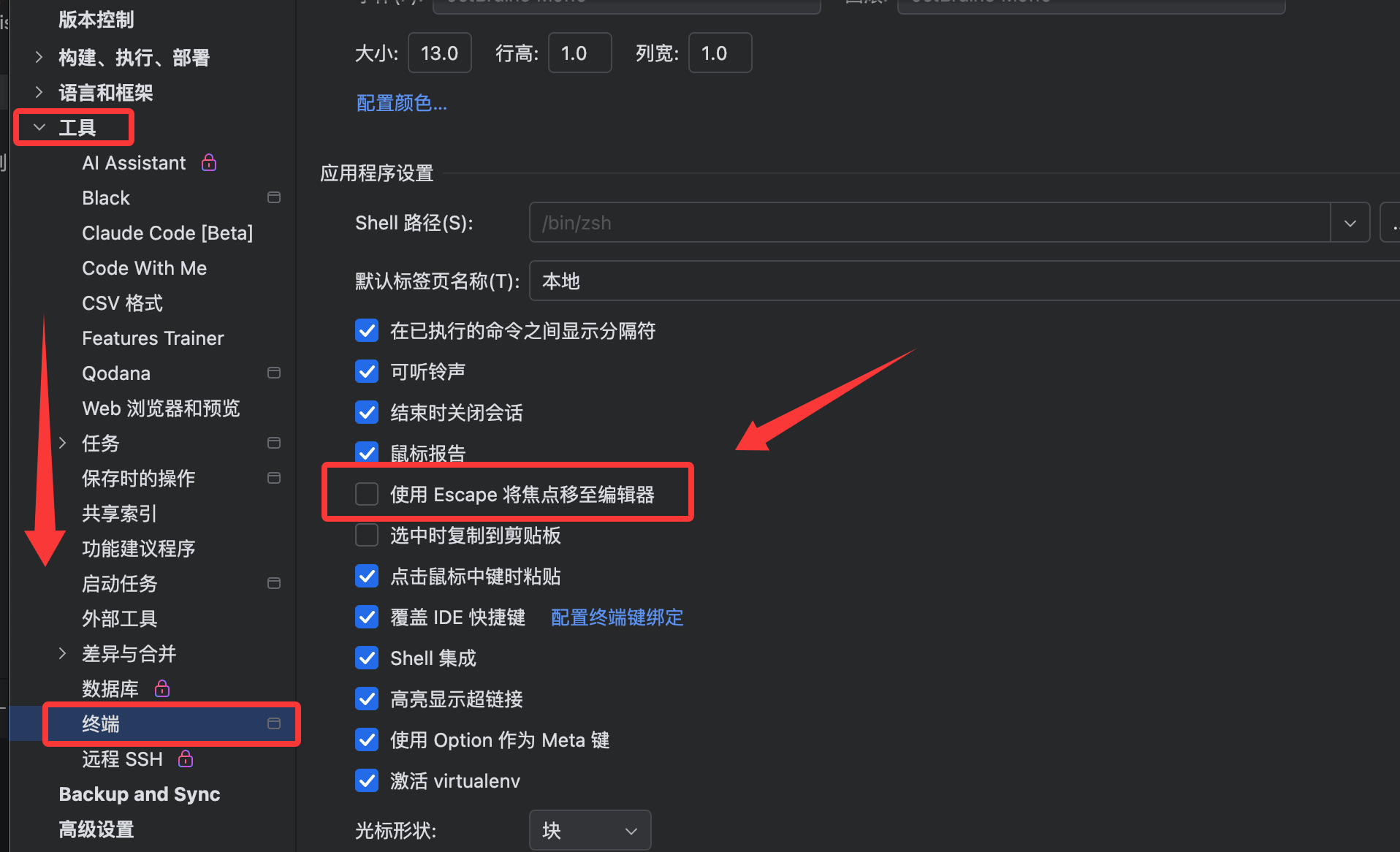
如果 ESC 键无法中断 Claude Code 操作,按以下步骤修复:
特殊场景配置
远程开发(Remote Development)
使用 JetBrains Remote Development 时,必须将插件安装在 远程主机 上,而非本地客户端机器。
操作路径: Settings → Plugin (Host)
WSL2 配置
如果在 WSL2 环境下使用 Claude Code,且出现 "No available IDEs detected" 错误,通常是 WSL2 的 NAT 网络或 Windows 防火墙阻断了连接。
方案一:添加 Windows 防火墙规则(推荐)
# 第一步:在 WSL 中查看 IP 地址
hostname -I
# 例如输出 172.21.123.45,子网为 172.21.0.0/16
# 第二步:以管理员身份打开 PowerShell,创建防火墙规则(根据你的子网调整 IP 范围) New-NetFirewallRule -DisplayName "Allow WSL2 Internal Traffic" -Direction Inbound -ProtocolTCP -Action Allow -RemoteAddress 172.21.0.0/16 -LocalAddress 172.21.0.0/16
然后重启 IDE 和 Claude Code 即可生效。
方案二:切换 WSL2 为镜像网络模式 (需要 Windows 11 22H2 或更高版本)
在 Windows 用户目录下的 .wslconfig 文件中添加:
[wsl2]
networkingMode=mirrored
然后在 PowerShell 中执行 wsl --shutdown 重启 WSL。
常见问题排查
插件安装后功能未出现
提示 "No available IDEs detected"
点击 Claude 图标提示 "command not found"
 学习助手
学习助手